Download HoneyView — Fast Image Viewer
Browse photos and images at lightning speed. Open 50+ formats including RAW, PSD, and view images inside ZIP and RAR archives without extracting.
What Is HoneyView?
A lightweight image viewer from Bandisoft that opens photos faster than most alternatives on Windows.
HoneyView is an image viewer built for speed. Developed by Bandisoft, the same South Korean company behind Bandizip and Honeycam, it handles over 50 image formats out of the box. JPG, PNG, PSD, WebP, RAW camera files from Canon and Nikon, animated GIFs, even BPG and APNG — HoneyView reads them all without plugins or codec packs.
What sets it apart from heavier tools like IrfanView or Photoshop is how fast it loads. Point HoneyView at a folder with hundreds of high-resolution photos and it renders them almost instantly. Scroll through with the mouse wheel. Jump to fullscreen with one click. There is no splash screen, no loading bar, no wait.
One feature that manga readers and comic fans rely on is archive viewing. HoneyView opens images directly inside ZIP, RAR, 7Z, CBR, and CBZ files without extracting anything first. It also supports double-page display with both left-to-right and right-to-left reading order, which makes it a go-to reader for scanned comics and manga collections.
Beyond browsing, HoneyView includes batch conversion and resizing, a slideshow mode with transitions, EXIF metadata display with GPS map links, and customizable keyboard shortcuts. It runs on Windows Vista through Windows 11, supports both 32-bit and 64-bit systems, and takes up around 8 MB of disk space. A portable version is available too — no installation needed.
Ready to try it? Download HoneyView and start browsing your photos.
Key Features
HoneyView packs serious speed into a minimal package. Here is what makes it a go-to image viewer for photographers, manga readers, and everyday users.
Ultrafast Image Loading
HoneyView renders images almost instantly, even when browsing folders packed with hundreds of high-resolution photos. It pre-caches nearby files so flipping through a photo library or manga collection feels immediate. Scroll through 4K JPEGs, RAW files, and multi-layer PSDs without waiting for progress bars.
50+ Image Formats
Opens BMP, JPG, PNG, GIF, PSD, WebP, TIFF, TGA, and camera RAW files (CR2, NEF, DNG, ORF, RAF, and more). It handles animated GIF, animated WebP, and APNG too. Instead of installing separate viewers for each format, HoneyView covers them all from one lightweight program.
View Inside Archives
Browse images stored in ZIP, RAR, 7Z, LZH, TAR, CBR, and CBZ files without extracting anything first. Just open the archive and flip through its contents like a regular folder. This is especially useful for manga readers who keep chapters in compressed volumes.
Double-Page Comic View
A built-in manga and comic reader mode displays two pages side by side. You can switch between left-to-right and right-to-left reading direction to match Western comics or Japanese manga. Combined with archive support, it turns HoneyView into a full CBR/CBZ reader.
EXIF & GPS Metadata
Displays camera settings like aperture, shutter speed, ISO, and focal length directly in the viewer. Photos with GPS data can be opened on Google Maps with a single click, so you can pinpoint exactly where a shot was taken.
Distraction-Free Fullscreen
Press a key and every toolbar, menu bar, and border disappears. The image fills your entire screen, making it perfect for presentations, photo review sessions, or just enjoying your shots at full resolution. Mouse wheel zoom and drag-to-pan still work in fullscreen mode.
Batch Conversion & Resizing
Convert multiple images between formats or resize them in bulk without opening a separate editor. Select a batch of files, pick your target format and dimensions, and let HoneyView process them all at once. Handy for preparing web-ready thumbnails or archiving collections.
Slideshow with Transitions
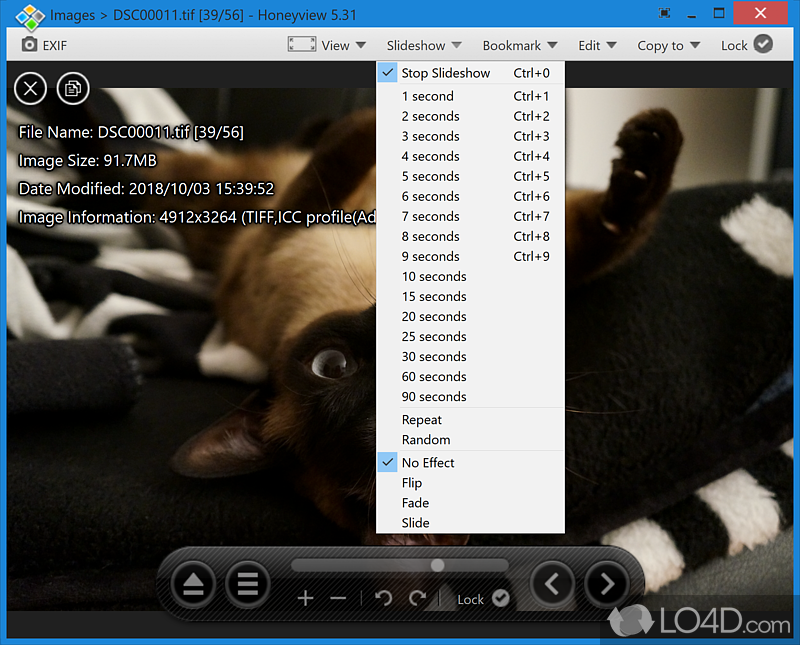
Run a slideshow across any folder or archive with configurable speed, transitions, and image filters. Useful for presenting photography work, reviewing large batches, or setting up a digital photo frame display on a spare monitor.
Bookmarks & Shortcuts
Mark images you want to revisit later. HoneyView saves bookmarks across sessions, so favorites stay accessible even after closing the app. Keyboard shortcuts are fully customizable, letting you map navigation, zoom, and rotate actions to whatever keys feel natural.
Portable & Lightweight
The installer is roughly 8 MB, and a portable version runs from a USB drive with no installation at all. HoneyView uses minimal RAM even with large files, so it stays out of the way on older hardware or machines already running resource-heavy programs.
Skinnable & Multi-Language
Switch between light and dark interface themes. HoneyView ships with built-in support for dozens of languages, so the menus and dialogs appear in your preferred language right out of the box. No plugins or patches needed.
RAW Camera File Support
Photographers shooting in RAW can preview DNG, CR2, CRW, NEF, NRW, ORF, RW2, PEF, SR2, and RAF files directly. No need to fire up Lightroom or Capture One just to check a shot. HoneyView loads RAW previews fast enough for quick culling after a shoot.
Ready to try it? Download HoneyView and see the difference yourself.
Download HoneyView
Get the latest version of HoneyView for your Windows PC. Choose between the standard installer or the portable edition that runs from a USB drive.
HoneyView for Windows
Download HoneyViewWindows Installer (EXE) | 8 MBWindows Installer
Standard EXE installer with file associations and shell integration. Supports Windows Vista through Windows 11, both 32-bit and 64-bit.
Download EXEPortable Edition
No installation required. Extract and run from any folder or USB drive. Leaves no registry entries behind on the host system.
Download Portable
You can also install HoneyView through package managers:
winget install Bandisoft.Honeyview or via Scoop (Extras bucket).
System Requirements
HoneyView runs well on most Windows machines. It has low hardware requirements and works on systems dating back to the Vista era.
| Component | Minimum | Recommended |
|---|---|---|
| Operating System | Windows Vista (SP2) | Windows 10 or 11 |
| Processor | 1 GHz single-core (x86 or x64) | Dual-core 2 GHz or faster |
| Memory (RAM) | 512 MB | 2 GB or more |
| Disk Space | 30 MB free | 100 MB free (for cache and temp files) |
| Display | 1024 x 768, 16-bit color | 1920 x 1080 or higher |
| Dependencies | None required | None required |
A portable version is also available – no installation needed. Just extract and run.
Screenshots
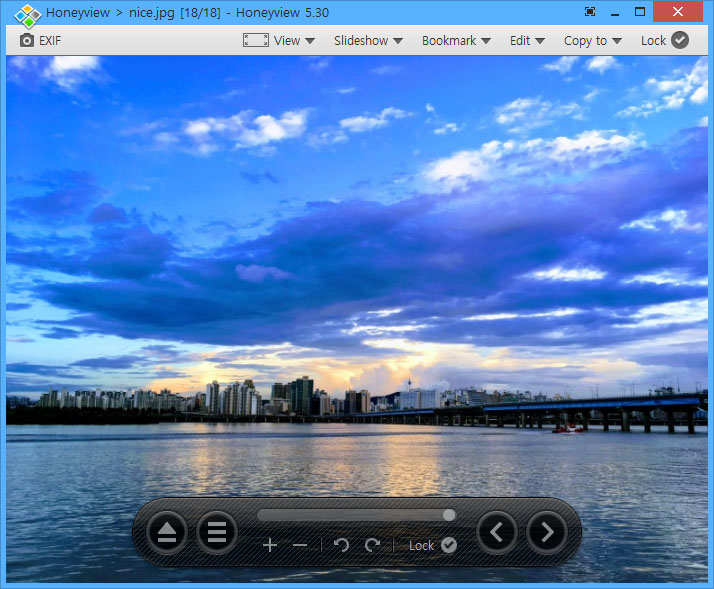
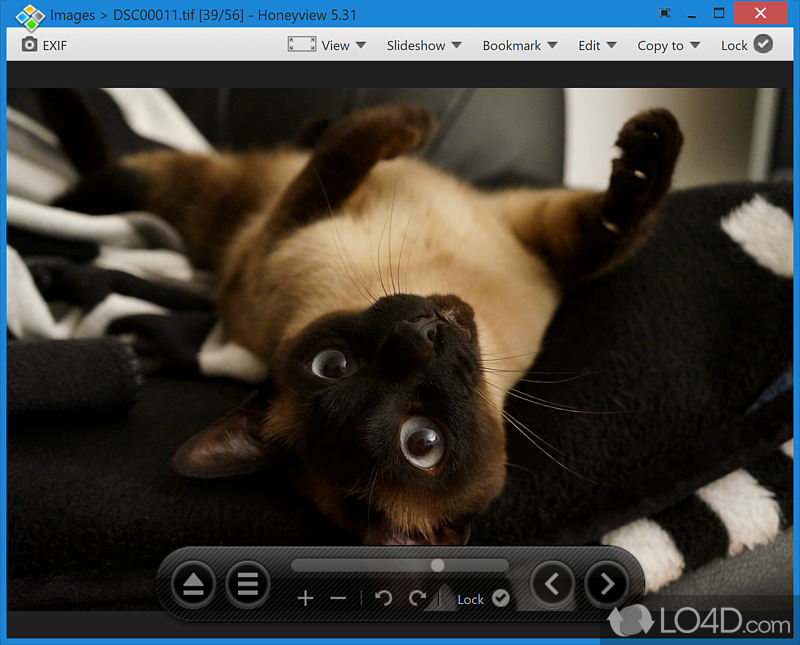
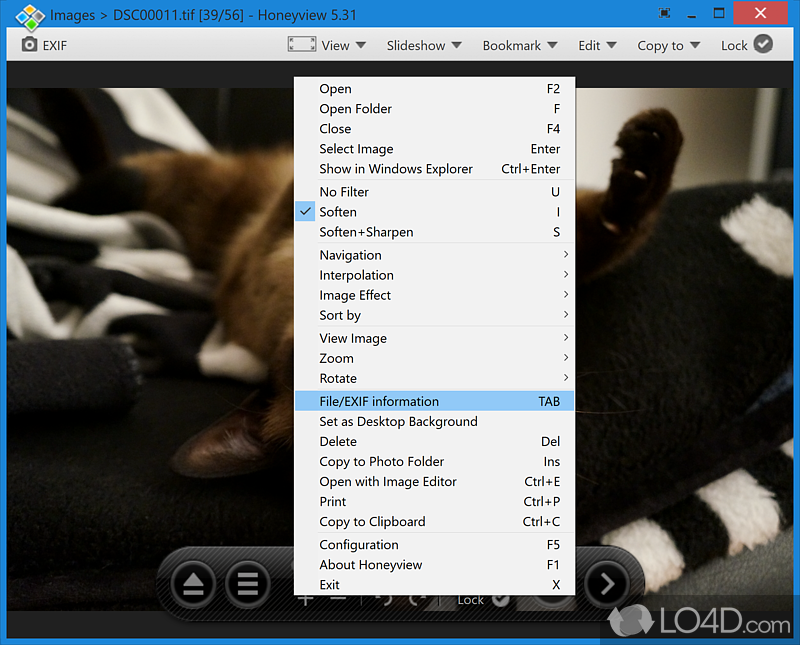
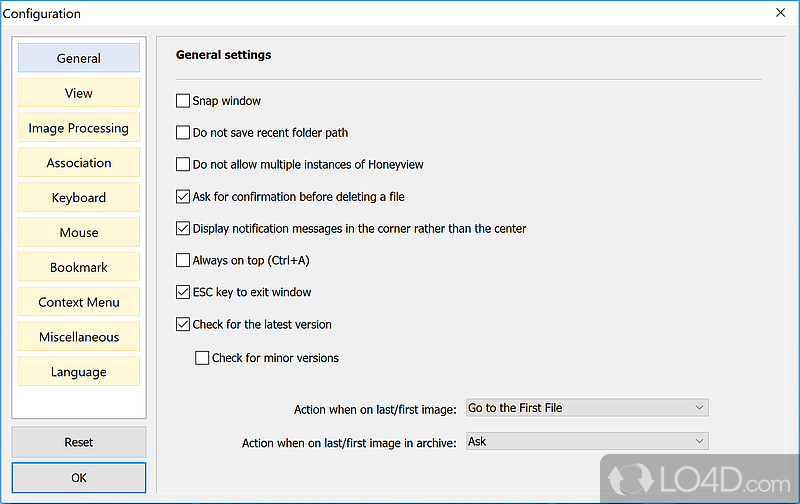
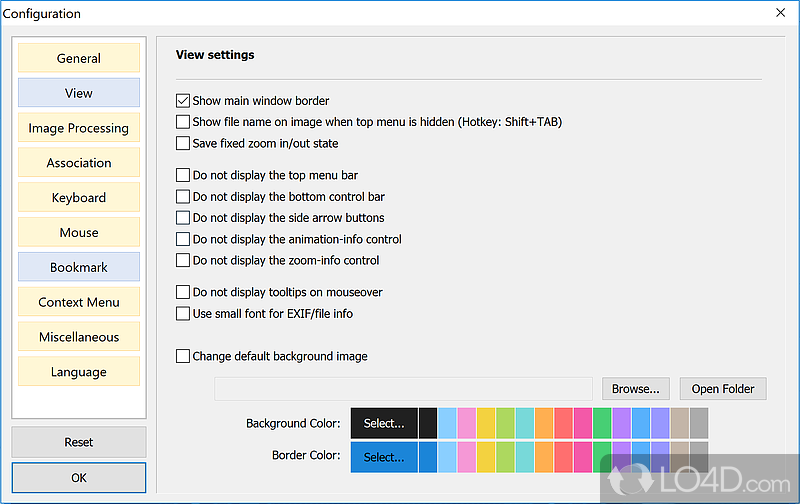
See HoneyView in action. Browse through interface views showing the image viewer, navigation tools, and slideshow features.
Ready to try it? Download HoneyView and see for yourself.
Getting Started with HoneyView
From download to browsing your first photo folder in under five minutes. Here is everything you need to get HoneyView running on your PC.
Downloading HoneyView
Head to our download section above to grab the latest version of HoneyView (v5.53, approximately 8 MB). The download takes just a few seconds on most connections.
You will see two options: the standard installer (.exe) and the portable version. The installer is the best choice for most users — it sets up file associations and adds right-click context menu entries automatically. The portable version is a ZIP archive you can unpack to a USB drive or any folder, which is handy if you want to run HoneyView on shared or public computers without installing anything.
Both versions are identical in features. HoneyView supports both 32-bit and 64-bit Windows, so a single installer works on any system from Windows Vista through Windows 11. There is no separate 64-bit build to worry about.
winget install Bandisoft.Honeyview
Installation Walkthrough
Once the installer finishes downloading, double-click the .exe file to begin. If Windows SmartScreen pops up with a blue warning, click “More info” and then “Run anyway” — this happens because HoneyView is free software without an expensive code-signing certificate, not because it is unsafe.
- Language selection: The first screen asks you to pick a language. Choose yours and click OK.
- License agreement: Read through the agreement and click “I Agree” to continue.
- Install location: The default path is
C:Program FilesHoneyview. Leave this as-is unless you have a specific reason to change it. - Component selection: You will see checkboxes for desktop shortcut, Quick Launch shortcut, and context menu integration. Keep “Add to right-click context menu” checked — it lets you right-click any image file and open it directly in HoneyView.
- Click Install: The process finishes in about 5 seconds. Click “Close” when done.
HoneyView does not bundle any adware, toolbars, or sponsored offers. The installer is clean from start to finish.
/S flag: Honeyview_setup.exe /S
After installation, HoneyView launches automatically. No registration, no account creation, no activation key needed. It is ready to use the moment the installer finishes.
Initial Setup & Configuration
HoneyView works out of the box with sensible defaults, but a few quick settings changes make a big difference. Open the settings panel by pressing F5 or going to the menu bar and clicking Settings.
File associations: On the Association tab, click “Select All” to register HoneyView as your default viewer for every supported image format (JPG, PNG, BMP, GIF, WebP, RAW, PSD, and dozens more). This means double-clicking any image in Windows Explorer will open it directly in HoneyView instead of the built-in Photos app.
View mode: Under the View tab, set “Resize method” to “Fit to window (shrink only)” — this keeps small images at their original size while scaling large ones to fit your screen. Also enable “Auto-rotate by EXIF” so portrait photos display correctly.
Interface preferences: On the General tab, you can switch between a light and dark background for the viewing area. If you spend long hours browsing photos, the dark background reduces eye strain. You can also choose whether to show the toolbar, status bar, and thumbnail strip by default.
Mouse controls: Under the Mouse tab, HoneyView lets you assign custom actions to mouse wheel, double-click, and middle-click. The default mouse-wheel-to-zoom is practical for most people, but comic/manga readers often prefer mouse-wheel-to-next-image.
Browsing Your First Photo Folder
The fastest way to start: open any image file on your computer. HoneyView loads it instantly and queues every other image in the same folder for quick navigation. Use the left/right arrow keys (or PgUp/PgDn) to flip through the whole folder without touching the mouse.
Alternatively, click the folder icon in the bottom-left corner (or press F) to browse to a specific directory. HoneyView scans the folder and sorts images by filename by default — you can change the sort order in the View menu.
Viewing images inside archives: This is one of HoneyView’s standout features. Open any ZIP, RAR, 7Z, CBR, or CBZ file directly. HoneyView reads images inside the archive without extracting them to your disk. This is especially useful for manga readers who keep chapters as .cbz files or photographers who share photo sets as .zip downloads.
EXIF data: Press Tab on any photo to see its EXIF metadata — camera model, aperture, shutter speed, ISO, GPS coordinates, and more. If GPS data is present, HoneyView can open the location in Google Maps directly from the info panel.
Here are the keyboard shortcuts you will use most often:
| Action | Shortcut |
|---|---|
| Next / Previous image | Right / Left or PgDn / PgUp |
| First / Last image | Home / End |
| Zoom in / out | + / - or mouse wheel |
| Fit to window | 9 or 1 |
| Original size (100%) | 0 or * |
| Fullscreen toggle | Alt+Enter or F11 |
| Rotate left / right | Alt+Left / Alt+Right |
| Show EXIF info | Tab |
| Bookmark current image | Ctrl+D |
| Open settings | F5 |
| Start slideshow | Ctrl+1 through Ctrl+9 |
| Open folder | F |
Tips, Tricks & Best Practices
Batch convert and resize: Many users miss this feature entirely. Go to Edit > Convert / Resize images (or press Q) to bulk-convert images between formats or resize hundreds of photos at once. You can set output format, quality level, and maximum dimensions.
Double-page mode for comics: If you read manga or comics, press Ctrl+2 to enable two-page spread view. Use Ctrl+L to switch between left-to-right and right-to-left reading order — essential for Japanese manga which reads right-to-left.
Bookmark your favorites: Press Ctrl+D on any image to bookmark it. Access all bookmarks from the Bookmark menu. This is useful when you are sorting through hundreds of photos and want to flag the ones worth keeping.
Custom keyboard shortcuts: Go to Settings > Key tab. You can reassign nearly every action to a different key. Power users often remap mouse-wheel actions and add shortcuts for the Copy To / Move To functions.
Skinnable interface: HoneyView supports custom skins. Check the Bandisoft forums for community-made skins if the default look does not suit your taste.
winget upgrade Bandisoft.Honeyview from the command line to check for new releases.
Frequently Asked Questions
Answers to common questions about downloading, installing, and using HoneyView on your Windows PC.
Is HoneyView safe to download and install?
Yes, HoneyView is safe to download and install. The software is developed by Bandisoft, a South Korean company founded in 2008 that also makes popular tools like Bandizip and Honeycam. HoneyView has been around since 1999 and has built a strong reputation over more than two decades.
The official installer (version 5.53, roughly 8 MB) is clean freeware with no adware, no spyware, and no bundled third-party software. Multiple antivirus engines on VirusTotal consistently flag the official binary as clean. The final update in June 2024 specifically patched a RAR vulnerability (KVE-2024-0290), which shows the developer took security seriously right up to the last release.
- Download only from the official Bandisoft website or trusted mirrors like CNET Download, FileHippo, or Softonic
- Avoid sites offering “cracked” or “activated” versions — HoneyView is already free
- Verify the file size is around 8 MB; anything much larger may include unwanted bundled software
- Run your own antivirus scan after downloading as a standard precaution
Pro tip: You can also install HoneyView through Windows Package Manager by running winget install Bandisoft.Honeyview in your terminal, which pulls directly from a verified source.
For the direct download link, visit our Download section.
Is HoneyView free from malware, adware, and spyware?
HoneyView is completely free from malware, adware, and spyware. Bandisoft explicitly labels HoneyView as “No Adware / No Spyware” on their official download page, and this claim holds up under independent testing.
The installer does not bundle toolbars, browser extensions, or third-party applications during setup. There are no pop-up ads inside the viewer, no telemetry dialogs, and no premium upsell screens. The program runs entirely offline once installed — it does not phone home or transmit user data. This is one of the reasons HoneyView became popular on Reddit and tech forums as a recommended image viewer.
- No bundled browser toolbars or search engine changers
- No advertising or pop-up notifications within the application
- No background processes running after you close the program
- The portable version writes zero data to your system registry
Pro tip: If a download site prompts you to disable Windows Defender before installing HoneyView, leave immediately. The real installer works fine with all antivirus software enabled. That kind of warning is a red flag for repackaged software.
Check our Features section for a full breakdown of what HoneyView offers.
Where can I find the official safe download for HoneyView?
The official HoneyView download is hosted on the Bandisoft website at en.bandisoft.com/honeyview/. This is the only source guaranteed to provide the unmodified, clean installer directly from the developer.
Bandisoft offers two download options from their official page: the standard setup installer (EXE, about 8 MB) and a portable 32-bit ZIP package. Both are the same version (v5.53, Build 6273, released June 21, 2024). The installer handles file associations and Start menu shortcuts automatically, while the portable version runs from any folder without modifying your system.
- Primary source: en.bandisoft.com/honeyview/ — direct from Bandisoft
- Package manager:
winget install Bandisoft.Honeyviewor Scoop (Extras bucket) - Trusted mirrors: CNET, Softonic, FileHippo, Softpedia — all carry the original build
- Avoid sites with extra “download managers” or that require disabling antivirus
Pro tip: If the Bandisoft website ever goes offline (since HoneyView is discontinued), the winget and Scoop package managers are the most reliable fallback sources because they verify package integrity automatically.
Head to our Download section for direct links and file details.
Does HoneyView work on Windows 11?
Yes, HoneyView works on Windows 11 without any issues. Bandisoft officially lists Windows 11 as a supported operating system on their download page, and community reports from users running Windows 11 22H2 and 23H2 confirm stable performance.
HoneyView v5.53 runs natively on both 64-bit and 32-bit editions of Windows 11. The installer properly creates file associations, registers in the “Open with” context menu, and integrates with the Windows 11 Start menu. There have been isolated reports on the Honeyview Forum (Google Groups) about the app not launching after a specific Windows Update, but Bandisoft attributed those cases to conflicts with third-party security software rather than OS incompatibility.
- Windows 11 (all editions): fully supported and tested
- Windows 10, 8.1, 8, 7, Vista: also supported
- Both 32-bit and 64-bit architectures work
- macOS and Linux are not supported — HoneyView is Windows-only
Pro tip: If HoneyView fails to launch after a Windows 11 update, try running it in Windows 10 compatibility mode. Right-click the EXE, go to Properties > Compatibility, and check “Run this program in compatibility mode for Windows 10.”
See our System Requirements section for full hardware and OS specifications.
What are the system requirements for HoneyView?
HoneyView is one of the lightest image viewers available, requiring almost nothing from your hardware. It runs comfortably on machines that are over a decade old.
The installer is roughly 8 MB, and the installed footprint stays under 15 MB on disk. HoneyView typically uses between 20-50 MB of RAM during normal browsing, though this can climb to 100-200 MB when viewing very large RAW files or multi-page archives. CPU usage stays negligible during standard image viewing — the program is written for speed above all else, and that design shows even on older dual-core processors.
- Operating System: Windows Vista, 7, 8, 8.1, 10, or 11 (32-bit or 64-bit)
- Processor: Any x86-compatible CPU from the last 15 years
- RAM: 512 MB minimum; 2 GB recommended for large image folders and RAW files
- Disk Space: ~15 MB for installation
- Display: Any resolution; HoneyView scales content to fit your screen
Pro tip: For photographers working with folders of 500+ high-resolution images, having 4 GB or more of RAM will make thumbnail loading and navigation noticeably smoother. HoneyView pre-caches adjacent images for instant flipping.
Check the full specifications on our System Requirements page.
Does HoneyView support 32-bit operating systems?
Yes, HoneyView fully supports 32-bit operating systems. Bandisoft provides a dedicated 32-bit portable build alongside the standard installer, and the regular installer itself works on both 32-bit and 64-bit Windows.
This is worth highlighting because many modern image viewers (like the newer ImageGlass 9.x series) have dropped 32-bit support entirely. HoneyView remains one of the few quality image viewers that still runs on 32-bit Windows 7 or Windows 10 machines. The portable 32-bit download is a ZIP file of about 8 MB that you can extract and run directly — no installation needed.
- Standard installer: works on both 32-bit and 64-bit Windows
- Portable 32-bit: standalone ZIP package, runs without installation
- Performance is nearly identical on 32-bit vs 64-bit for typical image viewing
- Supported OS range: Windows Vista through Windows 11, both architectures
Pro tip: If you are running a 32-bit system with limited RAM (under 2 GB), use the portable version. It avoids background services and startup entries that the installer version can optionally create, keeping your system lighter.
Download the 32-bit portable build from our Download section.
Is HoneyView completely free to use?
Yes, HoneyView is 100% free for both personal and commercial use. There is no paid version, no premium tier, no trial period, and no feature restrictions. You get the full program with every feature unlocked from the moment you install it.
Bandisoft licenses HoneyView as freeware — closed-source but free to use without limitations. Unlike Bandisoft’s other products (Bandizip and BandiView, which moved to a paid Pro model), HoneyView was never monetized. The software has no in-app purchases, no subscription fees, and no ads. This pricing model stayed consistent from the first release in 1999 through the final update in June 2024.
- Free for personal use: home, school, hobby projects
- Free for commercial use: office, business, enterprise deployments
- No registration, no account creation, no license key required
- No feature lockouts or usage limits of any kind
Pro tip: Be cautious of any website selling a “HoneyView license” or “HoneyView Pro” — those are scams. The real software has always been free and does not have a paid edition.
Learn about everything included in the free download on our Features page.
What is the difference between HoneyView and BandiView?
BandiView is the paid successor to HoneyView, built by the same developer (Bandisoft). HoneyView remains free but is no longer updated, while BandiView continues to receive new features and format support.
Bandisoft announced that HoneyView would stop receiving updates and directed users to BandiView for ongoing development. This follows the same pattern Bandisoft used with Bandizip, where the free version was frozen and new features moved to a paid product. BandiView adds support for newer image formats like AVIF, SVG, and the latest RAW camera profiles, plus quick format conversion tools (for example, HEIF to JPEG). The BandiView Pro license costs around $29 USD.
- HoneyView: Free forever, v5.53 (final), no new format support, but still works well for all standard formats
- BandiView: Paid (Pro license ~$29), active development, AVIF/SVG/new RAW support, format conversion
- HoneyView handles 50+ formats including WebP, PSD, RAW (DNG, CR2, NEF), and animated GIF/WebP
- If you only need to view common image formats, HoneyView is still more than sufficient
Pro tip: If you need AVIF support specifically (increasingly common on the web), BandiView or ImageGlass are your options. For everything else — JPEG, PNG, WebP, RAW, PSD, archives — HoneyView v5.53 handles it all just fine.
See what formats HoneyView supports in our Features overview.
How do I download and install HoneyView step by step?
Installing HoneyView takes under a minute. The installer is small (about 8 MB), has no bundled software, and requires no special configuration.
The setup wizard is straightforward with only a few screens. You can choose your installation directory, select file associations (which image types HoneyView should open by default), and optionally add a desktop shortcut. There are no hidden checkboxes for toolbars or browser hijackers to watch for.
- Download the installer from the official Bandisoft site or use our Download link
- Run the downloaded EXE file (HONEYVIEW-SETUP.EXE, ~8 MB)
- Choose your language (HoneyView supports multiple languages including English, Korean, Japanese, Chinese)
- Accept the license agreement and pick your install folder (default is fine for most users)
- Select which file types to associate with HoneyView (JPG, PNG, GIF, BMP, etc.)
- Click Install and wait about 10 seconds for completion
Pro tip: During the file association step, select all image formats you commonly use. This lets you double-click any image file to open it in HoneyView instantly. You can always change associations later through Windows Settings > Default Apps.
For a more detailed walkthrough, visit our Getting Started guide.
HoneyView portable vs installer: which version should I choose?
Choose the installer if you want file associations and Start menu integration. Choose portable if you want a self-contained program that leaves no trace on your system.
Both versions are functionally identical — same features, same format support, same performance. The difference is purely about how HoneyView lives on your computer. The installer writes to Program Files, creates Start menu entries, and can register itself as the default viewer for image file types. The portable version (a ZIP file, ~8 MB) runs from wherever you extract it, stores settings in its own folder, and touches nothing else on your system.
- Installer: Best for daily use on your main PC. Handles file associations, adds to right-click “Open with” menu, creates desktop/Start menu shortcuts
- Portable: Best for USB drives, work computers where you cannot install software, or testing. Zero registry writes, zero system modifications
- The portable build is 32-bit only, while the installer handles both 32-bit and 64-bit automatically
- Settings and bookmarks in the portable version stay in the application folder — easy to back up or move
Pro tip: You can run both versions side by side. Install the regular version for daily use, and keep the portable version on a USB drive for when you are on someone else’s computer or troubleshooting an unfamiliar machine.
Download either version from our Download section.
How to fix HoneyView installation errors on Windows?
Most HoneyView installation failures come from antivirus interference, a corrupted download, or insufficient permissions. The fixes are quick and usually solve the problem on the first try.
Because HoneyView’s installer modifies file associations in the Windows registry, security software sometimes flags the setup process. This is a false positive — the installer is clean — but it can block the installation from completing. Corrupted downloads (especially over unstable connections) are the second most common cause of setup failures.
- Re-download the installer: Delete the current file and download a fresh copy. Verify the file size is close to 8 MB
- Run as Administrator: Right-click the installer and select “Run as administrator” to ensure it has permission to write to Program Files and the registry
- Temporarily pause antivirus: Disable real-time protection, run the installer, then re-enable it. Windows Defender, Avast, and Kaspersky have all been reported to occasionally flag HoneyView setup
- Check disk space: Make sure you have at least 50 MB free on your target drive (the install only needs ~15 MB but Windows temp files need room)
- Use the portable version instead: If the installer keeps failing, download the portable ZIP. It needs no installation at all — just extract and run
Pro tip: If the installer hangs at the file association step, it usually means another program is locking the registry keys. Close all other image viewers (including Windows Photos) before running setup.
Still stuck? Our Getting Started guide covers additional troubleshooting steps.
How to fix HoneyView not opening, crashing, or freezing?
If HoneyView crashes on startup, freezes when opening images, or closes unexpectedly, the cause is usually a conflict with another application or a corrupted settings file. These issues are fixable without reinstalling.
The Honeyview Forum on Google Groups has documented several specific crash scenarios. The most common is a “Honeyview has stopped working” error on close, which was traced to conflicts with Internet Explorer components and certain security programs like Ad-Aware. Another frequent report involves HoneyView freezing when trying to display very large images (above 10,000 x 10,000 pixels) because the program hits a memory limit.
- Delete settings: Close HoneyView, navigate to
%AppData%Honeyview, and rename or delete theHoneyview.inifile. Restart the program — it will create fresh default settings - Check for software conflicts: Ad-Aware, certain Kaspersky modules, and old Internet Explorer add-ons have caused crashes. Try disabling them temporarily
- Update your graphics driver: Outdated GPU drivers can cause rendering freezes, especially with large images or animated GIFs
- Try the portable version: If the installed version crashes, the portable version runs independently and may work around the issue
- Reduce image cache: In Settings > View, lower the pre-cache count if HoneyView freezes when browsing large folders
Pro tip: If HoneyView crashes only when closing (not during use), this is a known bug in older versions. Updating to v5.53 fixes most of these exit crashes. The crash-on-close issue does not affect your images or system in any way — it is purely cosmetic.
For additional help, see our Getting Started guide.
Why do images look too bright or overly sharpened in HoneyView?
This is a known behavior in HoneyView related to ICC color profile handling and the resampling algorithm used during initial display. Both issues have straightforward fixes in the settings menu.
The brightness issue happens because HoneyView applies ICC profiles from JPEG files by default, and some monitor ICC profiles amplify certain color channels. Reddit users and the Honeyview Forum have documented this extensively. The sharpening issue is different — when HoneyView first displays an image at the “Fit in Window” zoom level, it uses a fast (but rough) resampling filter. Zooming in or out even slightly triggers a higher-quality filter, and the image looks correct after that.
- Fix brightness: Open Settings (F5 or gear icon) > uncheck “Utilize JPEG ICC” and “Utilize Monitor ICC.” This stops HoneyView from applying ICC color transformations that cause the brightness shift
- Fix sharpening/pixelation: In Settings > View, change the resampling method from the default to “Lanczos” or “Bicubic.” This applies the higher-quality filter from the start, eliminating the initial sharpened appearance
- Quick workaround: Press Ctrl+Mousewheel once to zoom slightly, then press * (asterisk) to return to “Fit to Window” — the image will render with the better filter
Pro tip: If color accuracy matters for your work (photography, design), consider using a dedicated color-managed viewer instead. HoneyView prioritizes speed over color precision, which is the right tradeoff for casual browsing but not ideal for proofing.
Learn about all available settings in our Features section.
HoneyView shows two images side by side instead of one. How do I fix this?
This happens when HoneyView’s double-page (book/manga) viewing mode is enabled. It is designed for reading comics and manga but can activate unexpectedly when browsing regular photo folders.
HoneyView has a built-in comic reader mode that displays two pages side by side, just like an open book. This mode can be triggered by opening CBR/CBZ archive files, or sometimes by accidentally pressing the keyboard shortcut. When active, it splits the viewer into two panes and shows adjacent images next to each other, which looks wrong for standard photo viewing.
- Press Ctrl+2 to switch back to single-page view
- Alternatively, go to View > Page Display and select “Single Page”
- If the problem recurs, check View > Reading Direction — make sure it is set to your preference (Left-to-Right for western content, Right-to-Left for manga)
Pro tip: If you regularly switch between photo browsing and comic reading, use HoneyView’s profile or shortcut system. Create two separate desktop shortcuts: one for photos (normal mode) and one for comics (double-page mode). Each can have different command-line flags.
Discover more about HoneyView’s viewing modes in our Features section.
How do I update HoneyView to the latest version?
The latest (and final) version of HoneyView is v5.53, released on June 21, 2024. Since HoneyView has been discontinued, there will be no further updates. If you are running an older version, you should update to v5.53 for the security patch.
HoneyView does not have a built-in auto-update mechanism. To update, you need to download the new installer from the official site and run it over your existing installation. Your settings, bookmarks, and file associations will be preserved during the upgrade. The v5.53 update is particularly important because it fixes a RAR archive vulnerability (KVE-2024-0290) that could be exploited through maliciously crafted archive files.
- Check your current version: open HoneyView, go to Help > About
- If you are on v5.53, you are already on the latest version — no action needed
- If you are on an older version, download v5.53 from our Download section
- Run the installer over your existing installation (no need to uninstall first)
- For portable users: extract the new ZIP into the same folder, overwriting old files
Pro tip: Since HoneyView will not receive future updates, consider using a package manager like winget (winget install Bandisoft.Honeyview) to ensure you have the exact final version. Package managers verify file integrity during download, adding an extra layer of trust.
See the Download section for the latest installer and portable packages.
Is HoneyView discontinued? Will there be new versions?
Yes, HoneyView has been discontinued by Bandisoft. Version 5.53 (June 2024) is the final release, and no further updates are planned. Bandisoft has directed users to their new product, BandiView, as the successor.
This does not mean HoneyView stops working. The program will continue to run on current and future versions of Windows for the foreseeable future. Image file formats like JPEG, PNG, and WebP are stable standards that will not change in ways that break HoneyView. The main gap going forward is that HoneyView will not add support for new formats like AVIF or JPEG XL, and it will not receive security patches for any future vulnerabilities that may be discovered.
- Still works: Opens all currently supported formats (50+ including RAW, PSD, WebP, animated GIF/WebP/PNG)
- No new formats: AVIF, JPEG XL, newer RAW profiles will not be added
- No security patches: If a new vulnerability is found, it will not be fixed in HoneyView
- Alternative: BandiView (paid, ~$29) or ImageGlass (free, open-source) for users who need ongoing updates
Pro tip: For most everyday users viewing JPEGs, PNGs, and GIFs, HoneyView v5.53 is still perfectly fine. The discontinuation mainly affects users who need cutting-edge format support or work in environments that require actively maintained software for compliance reasons.
Compare HoneyView’s format support in our Features section.
Can HoneyView open images inside ZIP, RAR, and 7Z archives?
Yes, HoneyView can open and browse images directly inside compressed archives without extracting them first. This is one of HoneyView’s most distinctive features and a major reason for its popularity among comic and manga readers.
HoneyView supports ZIP, RAR, 7Z, LZH, TAR, ALZ, EGG, CBR, and CBZ archive formats. When you open an archive containing images, HoneyView treats it like a regular folder — you can browse through all images with arrow keys or mouse wheel, use slideshows, and even bookmark specific pages. This works with nested archives too (a ZIP inside a ZIP). Performance stays fast because HoneyView only decompresses the image you are currently viewing, not the entire archive.
- Supported archives: ZIP, RAR, 7Z, LZH, TAR, ALZ, EGG
- Comic formats: CBR (Comic Book RAR) and CBZ (Comic Book ZIP) with double-page view
- Navigate archived images the same way as regular files: arrow keys, mouse wheel, thumbnail strip
- EXIF data display works even for images inside archives
Pro tip: For manga and comic readers, set HoneyView’s reading direction to Right-to-Left (View > Reading Direction > RTL) and enable double-page mode (Ctrl+2) for an authentic reading experience. HoneyView will display pages exactly like a physical book, and you can flip through CBR/CBZ files with a single scroll.
See all supported formats in our Features section.
How do I view EXIF data and GPS location in HoneyView?
HoneyView displays EXIF metadata directly in the viewer and can show the GPS coordinates on Google Maps with one click. No plugins or additional software needed.
When viewing a photo that contains EXIF data, press E on your keyboard (or click the EXIF button in the toolbar) to open the metadata panel. This shows camera model, lens info, exposure settings (aperture, shutter speed, ISO), focal length, date/time taken, and more. If the photo has embedded GPS coordinates, HoneyView shows a “Map” button that opens Google Maps centered on the shooting location.
- Toggle EXIF panel: Press E or use View > EXIF Information
- GPS location: Click the Map link next to GPS coordinates to open Google Maps
- Displays all standard EXIF fields: camera make/model, lens, exposure, ISO, focal length, date, resolution
- Works with JPEG, TIFF, and many RAW formats (DNG, CR2, NEF, ORF, RW2, and others)
Pro tip: Photographers who need to sort or review photos by shooting location can use HoneyView’s EXIF GPS feature as a quick preview tool. Open a folder of photos, press E, and check the GPS data on each image without needing heavyweight software like Lightroom or Photo Mechanic.
Learn about more viewing features in our Features overview.
Does HoneyView support batch image conversion and resizing?
Yes, HoneyView includes built-in batch conversion and resizing tools that can process multiple images at once. The feature is basic compared to dedicated batch processors but handles the most common tasks well.
To access batch conversion, go to Edit > Convert/Resize or use the keyboard shortcut. You can select multiple images from the current folder, choose an output format (JPEG, PNG, BMP, or TIFF), set quality/compression levels, and optionally resize by percentage or target dimensions. The batch tool preserves or strips EXIF data based on your preference and can save to the same folder or a new output directory.
- Supported output formats: JPEG (with quality slider), PNG, BMP, TIFF
- Resize options: By percentage (10-400%) or by specific pixel dimensions with aspect ratio lock
- Batch processing: Select multiple files and convert/resize them all in one operation
- Option to preserve or strip EXIF metadata during conversion
Pro tip: For quick web optimization, batch-convert photos to JPEG at 80% quality. This typically reduces file size by 60-70% with minimal visible quality loss. If you need more advanced batch features like watermarking, renaming, or format-specific options, IrfanView’s batch dialog is more capable, but for basic resize-and-convert jobs, HoneyView does the job without needing extra software.
See all editing capabilities in our Features section.
HoneyView vs IrfanView: which image viewer is better?
Both are excellent free image viewers, but they target different users. HoneyView is better for pure image browsing and comic reading, while IrfanView is better for batch processing and power users who need editing tools.
IrfanView supports over 100 image formats (with plugins), offers batch rename and convert, includes basic image editing (crop, resize, color adjustments), and has a vast plugin ecosystem. HoneyView focuses on speed, archive viewing, and a cleaner browsing experience. IrfanView was first released in 1996 and remains actively updated; HoneyView was discontinued in June 2024 at version 5.53. IrfanView is free for non-commercial use but requires a paid license ($12) for commercial use. HoneyView is free for all use cases.
- HoneyView wins at: Archive browsing (ZIP/RAR/CBR), manga/comic reading, lighter resource usage, simpler interface, free commercial use
- IrfanView wins at: Batch processing, format count (100+), plugin extensibility, active development, image editing tools
- Speed: Both are extremely fast; HoneyView has a slight edge for initial image load time on older hardware
- UI: HoneyView is more modern-looking; IrfanView’s interface has not changed much since the 2000s
Pro tip: Many users run both. HoneyView as the default image viewer for quick browsing (double-click to view), and IrfanView when they need to edit, batch process, or convert between obscure formats. The two programs do not conflict with each other.
Read our full Features comparison to see what HoneyView offers.
Still have questions? Visit our Getting Started guide or download HoneyView to try it yourself.